If choosing an outfit eats into your mornings, a what to wear app iPhone users can trust can turn decision fatigue into an efficient, enjoyable routine. These apps combine wardrobe cataloging, AI outfit generation, weather data, and calendar context to suggest outfits that fit your day, your style, and your actual closet. This guide explains what to look for, how to set one up, and the five-minute workflow that keeps your style consistent with almost no effort.
What Is a “What to Wear” App on iPhone?
A what to wear app for iPhone streamlines outfit planning by digitizing your closet and recommending combinations. Think of it as a smart stylist that knows your clothes and the context you’re dressing for. Modern options leverage AI to learn your preferences, color harmony, and common outfit patterns—then surface looks that work for the weather, events, and your comfort threshold.
Core components typically include:
- Wardrobe catalog: Photos of your actual pieces, tagged by category, color, fabric, season, and occasion.
- AI outfit generator: Suggestions built from your items and style rules you set.
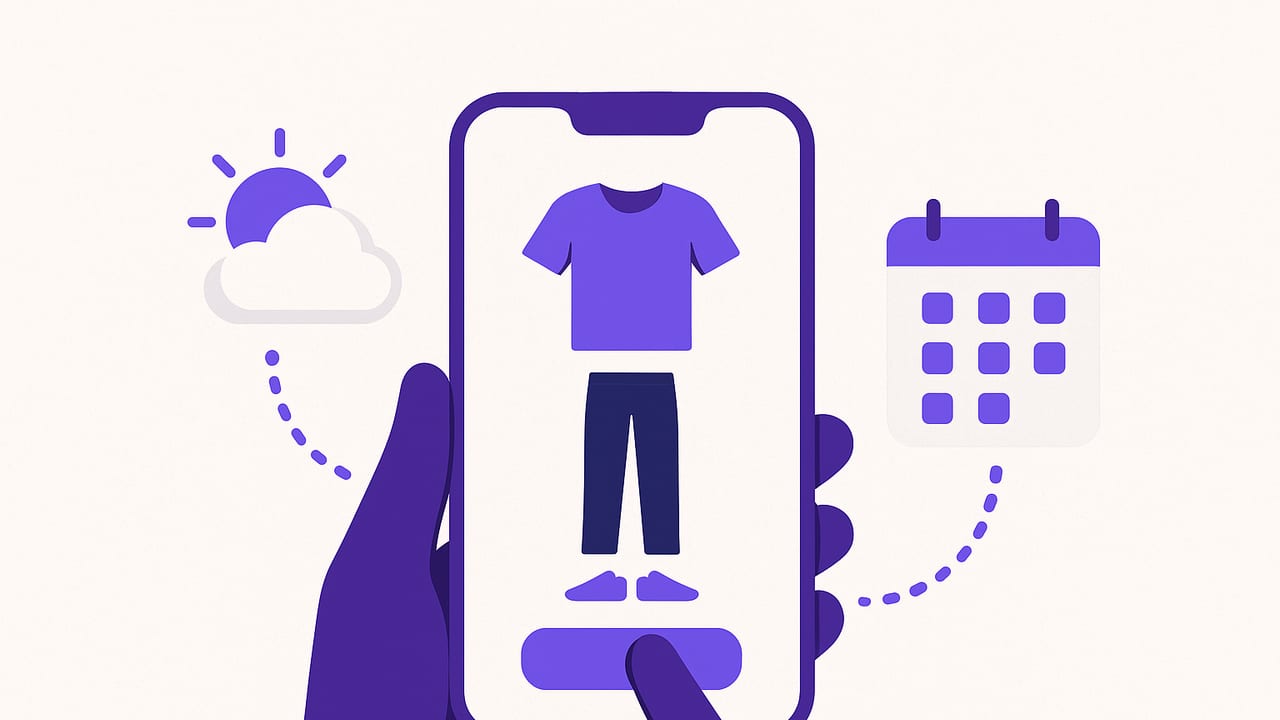
- Calendar and weather awareness: Pulls in events and forecasts to match outfits to real-world conditions.
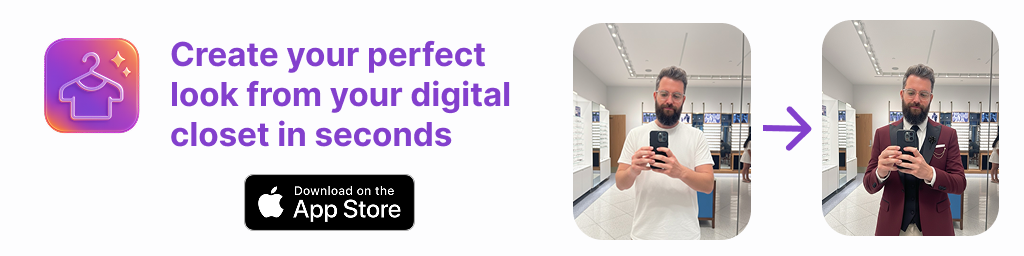
- Virtual try-on or realistic previews: Visualize combinations without changing clothes.
- Sharing and feedback: Save looks, get opinions from friends, and track what you wore.
Key Features to Look For in a What to Wear App on iPhone
Not all apps are built the same. Prioritize features that save time daily and reduce friction long term.
- Fast wardrobe input: Batch import, background subject removal, and lighting correction so adding items is painless.
- Smart tagging and search: Auto-suggested categories (e.g., “crewneck knit,” “straight-leg denim”), custom tags (e.g., “office,” “dry-clean only”), and filters by color, season, or fabric.
- Weather-based recommendations: Feels-like temperature, precipitation, wind, and humidity to decide layers and footwear.
- Calendar context: Sync with your iPhone Calendar so the app knows if you’re heading to a client meeting, gym class, or dinner date.
- AI outfit generation with user control: Sliders or toggles to bias towards comfort, formality, color contrast, or novelty vs. repeating.
- Virtual try-on or realistic previews: Helps you see proportions, color pairings, and silhouette without mirror time.
- Capsule planning: Build mini collections (e.g., “business travel capsule” or “summer city capsule”) to simplify packing and daily choices.
- Wear history and analytics: Track cost-per-wear, most-used items, neglected pieces, and outfit ratings.
- Offline-friendly workflows: Plan looks on a plane or subway; sync later.
- Privacy and control: Local photo processing when possible, clear permissions, and easy export or deletion.
Step-by-Step: Set Up Your iPhone “What to Wear” System
You can get from zero to a useful wardrobe database in a weekend—or in focused 20-minute sprints. Here’s a practical setup path:
- Audit your closet: Pull aside items you actually wear. If an item hasn’t seen daylight in months and doesn’t spark a clear “yes,” consider donating; capturing only items you keep reduces clutter in the app.
- Prep a quick photo station: Good natural light, a neutral backdrop, and a hanger or flat-lay surface. Clean, wrinkle-free garments read better in the app.
- Photograph essentials first: Tops, bottoms, shoes, outerwear that drive most of your outfits. Leave special-occasion pieces for later.
- Tag consistently: Use a simple schema: Category (top, bottom, layer, shoe), Fit (relaxed, tailored), Color (primary + accent), Occasion (work, casual, gym, event), Season (warm, cool, all-year). Consistency makes search and AI smarter.
- Record size and notes: Add quick notes like “needs belt,” “best with high-rise,” or “runs hot in summer.” These micro-cues prevent bad picks.
- Define style rules: Indicate preferred silhouettes (e.g., slim top + wide leg), color pairings you love, and items you never wear together. Seed the AI with what feels like “you.”
- Connect calendar and weather: Grant permission for calendar access and location-based weather so the app can match outfits to your real week and forecast.
- Set notification windows: Evening planning (e.g., 8–9 p.m.) and a morning check-in (e.g., 7 a.m.) keeps you prepared without interruptions.
- Create a starter capsule: Pick 15–20 versatile pieces you love. Ask the app to generate 10–15 outfits from that capsule to validate your tags and style rules.
Pro tip: Photograph similar items in batches (all T-shirts, all jeans). Use the same distance and angle to make your digital closet look cohesive and easier to scan.
The 5-Minute Daily Workflow
Once set up, a good what to wear app iPhone users rely on should compress planning into minutes:
- Night before (3 minutes): Open tomorrow’s calendar. Let the app surface 3–5 looks based on events and weather. Save your favorite or tap “refresh” to explore variants.
- Morning (1 minute): Check for forecast changes. The app should auto-swap layers or footwear if rain or temperature shifts pop up.
- After work (1 minute): Rate the outfit’s comfort and confidence from 1–5. Tag issues like “too warm” or “shoes rubbed.” The AI will adjust future picks.
Advanced Tips to Elevate Your Outfits
- Build micro-capsules: Create 7–10 item capsules for niche needs like “client presentation,” “creative studio,” or “weekend city walk.”
- Use color anchors: Choose 2–3 base colors (e.g., navy, black, tan) and 2 accents (e.g., rust, sage). Tag accordingly. The app can prioritize high-compatibility combos.
- Seasonal switchovers: Mark items as seasonal. When conditions shift, prompt the app to retire winter pieces and surface spring alternatives.
- Repeat with intention: If an outfit scored high, duplicate it with one variable change (different shoes or accessory) to grow your hits with minimal risk.
- Packing lists: For travel, generate outfits for each day and activity, then reverse-engineer a minimalist packing list. Add buffer layers for weather volatility.
Comparing App Types: Which One Fits You?
| App Type | Strengths | Best For | Watch-outs |
|---|---|---|---|
| AI Outfit Generator | Fast suggestions, learns your taste, handles large wardrobes | Busy users who want variety without thinking | Requires good tagging and a representative photo set |
| Wardrobe Manager (manual) | Granular control, detailed tags, strong inventory view | Organizers who enjoy curation and capsule building | More manual effort; fewer “surprise” combos |
| Calendar-First Stylist | Excellent for event-based planning, reminders, logging | Professionals with varied daily contexts | May lack deep style discovery without AI |
| Camera/AR Try-On | Great visual feedback on silhouette and layering | Visual learners, fit-sensitive shoppers | Lighting and camera angle matter; can be time-consuming |
Common Pitfalls—and How to Fix Them
- Overloading the app: Uploading every rarely worn item creates noise. Fix: Start with your top 30–40 pieces you wear most.
- Inconsistent tags: “Blue” vs. “navy” vs. “indigo” dilutes search. Fix: Decide labels upfront; use controlled vocabularies.
- Poor photos: Dim, cluttered backgrounds confuse AI and you. Fix: Re-shoot with natural light and a plain backdrop; use auto background removal.
- No feedback loop: If you never rate outfits, the app won’t learn. Fix: Spend 30 seconds rating comfort and confidence after wear.
- Ignoring weather nuance: Temperature alone isn’t enough. Fix: Factor wind, humidity, and precipitation. The best apps do this automatically.
Privacy, Data, and Photo Hygiene
Your outfit photos and preferences are personal data. Treat them accordingly:
- Permissions: Only enable calendar, camera, and location if they serve features you use. Disable when not needed.
- Local processing: Prefer apps that process images on-device or clearly disclose where and how data is stored.
- Export and delete: Check that you can export your wardrobe and wipe data from the app and cloud on request.
- Minimal identifiable info: Avoid full-face photos if a garment-only view is sufficient for your workflow.
FAQ: Quick Answers for iPhone Users
Do I need to photograph everything?
No. Start with staples and most-worn items. Add specialty pieces as you use them. A lean digital closet improves suggestion quality.
How accurate are AI size or fit suggestions?
AI can estimate proportions and layer logic but can’t guarantee fit. Add notes on cut and sizing for each item. Over time, your feedback drives better picks.
Can I plan outfits offline?
Many apps allow offline browsing and tagging. Weather and calendar syncing require connectivity, but cached forecasts help in a pinch.
What about travel?
Create a trip-specific capsule, set the destination weather, and generate day-by-day looks. Export a packing checklist to Notes or Reminders.
Is this helpful for men and women?
Yes. The value is universal: faster decisions, fewer unworn items, and a repeatable system. Tagging and silhouette rules are unisex.
A Simple Starter Plan
- Photograph 25–30 essentials in good light.
- Create tags for category, color, season, and occasion.
- Connect calendar and enable weather-based suggestions.
- Let the app propose 7 outfits for the week; lock 3 you love.
- Rate what you wear and tweak tags on the weekend.
Within two weeks, you’ll notice fewer last-minute changes, a tighter personal style, and more mileage from what you already own.
Final Thoughts
A what to wear app iPhone users stick with does three things well: it reflects your real closet, respects your time, and learns your taste. Focus on fast onboarding, meaningful tags, and a tight feedback loop. With those pieces in place, your phone becomes a quiet stylist—reducing decision fatigue and making your clothes work harder for you.
If you prefer an iOS option that blends AI outfit generation, realistic try-on, and a friendly digital closet, Outfit Maker brings those pieces together while letting you plan, save, and share looks at your own pace.