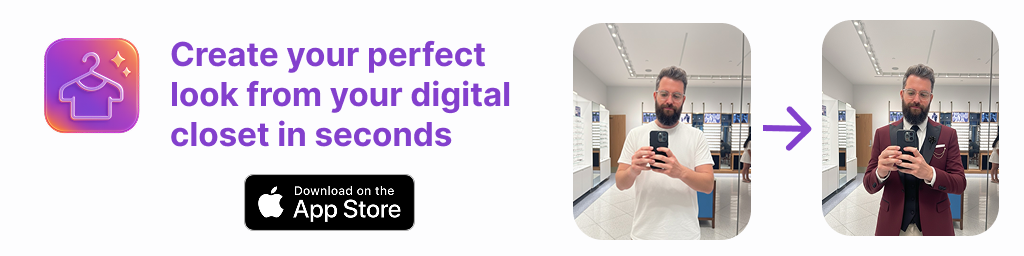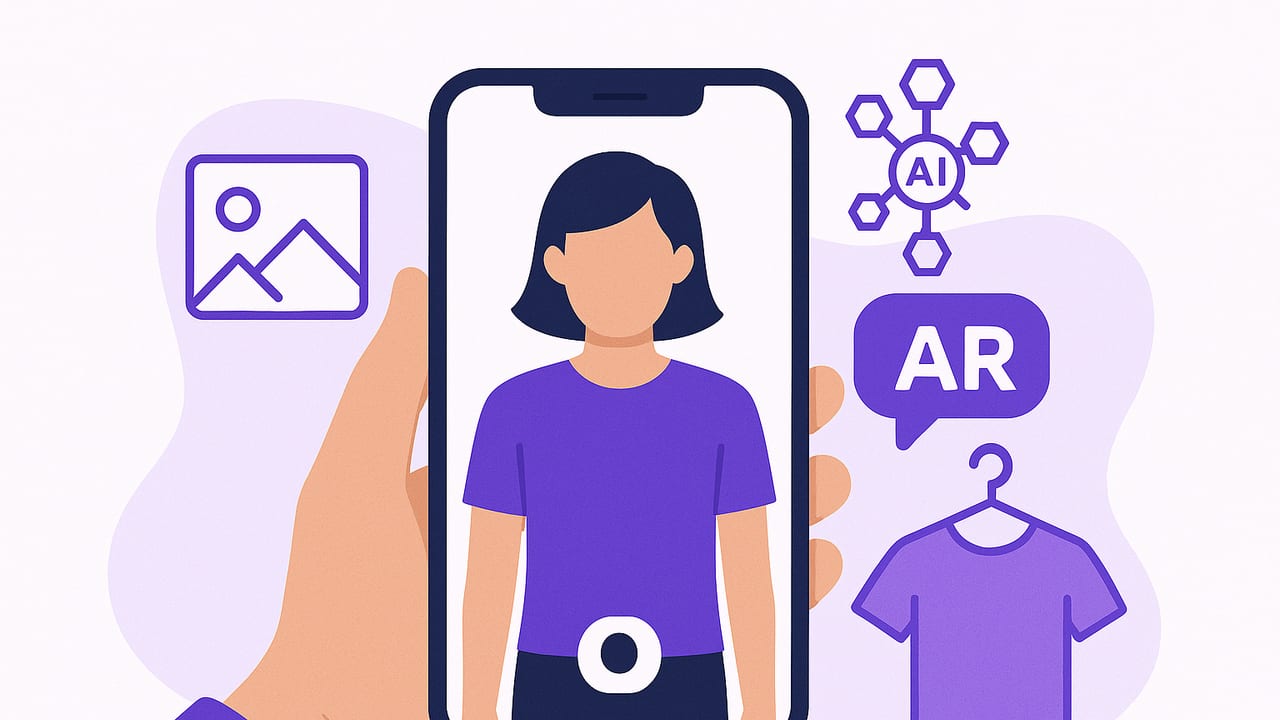
You can try on clothes virtually on iPhone in a few different ways, from augmented reality to AI outfit generators that use your photos. This guide explains what each approach does, how to capture realistic garment images, and the workflow that helps you plan outfits with confidence. Whether you want quick fit checks for shopping or a smarter closet to style what you already own, you will find a practical path below.
What virtual try on means on iPhone
Virtual try on on iPhone typically takes one of three forms.
- Retail AR preview: Some brands let you place items on your body via your camera or superimpose items in 3D. This is great for color and vibe, but accuracy varies by garment type and lighting.
- AI outfit generator from photos: You upload images of your clothing and a clear portrait or body photo. The app composites or simulates the look on you. This is the most flexible for everyday styling because it uses your real closet, not only store inventory.
- Layered flat lays and collages: You mix cutouts of garments and reference selfies. While less automated, it still helps validate silhouette, color harmony, and proportions before you commit.
Each method answers a different question. AR helps you visualize specific store items fast. AI generators help you plan and repeat outfits from your wardrobe. Collages are a manual, low tech fallback that still prevents style mistakes.
Compare the ways to try on clothes virtually on iPhone
| Method | What it does | Best for | Pros | Limitations |
|---|---|---|---|---|
| Retail AR preview | Overlays store items via camera or 3D | Shopping decisions | Fast, brand tuned, true color for catalog items | Limited to in stock items, fit realism varies by body and lighting |
| AI outfit generator from photos | Combines your portrait and garment images | Outfit planning and mixing closet items | Uses your real clothes, repeatable looks, shareable | Needs clean photos, results depend on image quality |
| Manual collage or flat lay | Cutout garments layered over reference selfies | Budget friendly planning | Full control, works offline, no learning curve | Time consuming, less dynamic, lower realism |
Set up essentials for realistic iPhone virtual try ons
Accuracy starts with great photos. Follow these steps to build a clean digital closet that your iPhone and AI can use well.
1. Capture neutral selfies or full body portraits
- Frame: Waist up for tops or outerwear tests. Full body for complete outfits and dresses.
- Lighting: Face a window or use soft room lighting. Avoid harsh backlight.
- Pose: Relaxed stance with arms slightly away from body so sleeves and side seams can be seen.
- Background: Plain wall if possible. Clean backgrounds make compositing more realistic.
- Outfit base: Wear a fitted base layer such as a tee and slim pants in a neutral color to minimize visual conflict.
2. Photograph garments like a catalog
- Layout: Hang items on a simple hanger or lay flat. Smooth wrinkles for true drape.
- Angles: Shoot front on. For shoes and bags, capture 45 degree angle plus profile. For denim and trousers, include full length.
- Lighting: Indirect daylight or consistent soft lighting. Keep shadows minimal.
- Background: Use a plain wall or white sheet. Consistency helps AI edge detection.
- Detail passes: Take a second shot for textures such as knit, tweed, leather grain, and buttons. Helpful for color matching.
3. Edit for clean edges and true color
- Cropping: Keep the whole garment visible with even padding around edges.
- Exposure: Adjust brightness to match real life. Overbright images can look washed out in composites.
- White balance: Use auto or manually set to daylight to avoid color casts.
- Background removal: If your app supports it, remove backgrounds to create clean cutouts. This improves layering and realism.
Virtual try on is 50 percent photo craft and 50 percent styling. Precise images make every outfit decision faster and more confident.
Workflow to try on clothes virtually on iPhone
Use this simple workflow to go from raw photos to realistic outfit checks.
- Create your base portrait library: Capture a few standard poses, such as straight on, slight turn, seated, and close up for tops. Reuse them to speed up try ons.
- Tag garments: In Photos or your outfit app, add tags such as color, season, dress code, and occasion. Examples include navy, summer, smart casual, wedding guest.
- Build outfit templates: Save common formulas you wear often. Example formulas include blazer plus tee plus straight jeans plus loafers, or midi dress plus belt plus ankle boots.
- Run try ons by formula: Pick a template, swap components quickly, and let the app composite the result on your portrait. Save the best ones to a lookbook.
- Sanity check with a mirror: Before a big event, do a quick real life fit check for tailoring, shoe comfort, and strap lengths. Virtual try on is a shortcut, not a substitute for comfort.
Accuracy checklist for realistic virtual outfits
- Scale: Verify that shoulder width, sleeve length, and hem length make sense relative to your portrait. If pieces look oversized, reshoot with more distance or crop differently.
- Perspective: Shoot garments from head on. Angled shots can warp proportions during compositing.
- Fabric type: Stiff fabrics like denim and suiting layer more realistically than slippery satin, which can look flat without drape cues.
- Color fidelity: Compare the garment photo on screen to the item in daylight. If it is off, correct white balance before trying on.
- Contrast vs background: Avoid dark garments on a dark wall. High contrast edges help the app place items cleanly.
- Layer order: For jackets and coats, ensure the app places outerwear over tops and under scarves. Correct ordering adds depth.
Troubleshooting common issues
- Jacket looks too boxy: Step back when photographing the jacket and hang it on a structured hanger with shoulders filled. This preserves the silhouette.
- Pants do not align with shoes: Capture full length pants laid flat with waistband straight and hems parallel to the frame.
- Colors clash unexpectedly: Toggle to neutral backgrounds or grayscale on your portrait to judge value and contrast first. Then restore color.
- Reflections confuse edges: Avoid glossy floors or mirrors in garment shots. Matte surfaces are best.
- Hair overlaps collars awkwardly: Save a second portrait with hair tucked to allow clean collar placement.
Use cases: from shopping to planning
- Shop smarter: Import a screenshot of a product page, remove its background, and layer it on your portrait to preview how it pairs with your existing shoes and bag.
- Pack faster: Assemble a travel capsule virtually. Test mix and match looks and count rewears before you pack.
- Event dressing: Compare formality levels by swapping accessories and outerwear. Save three backup options in your lookbook.
- Season transitions: Try layering a trench over spring dresses to see if tights and boots balance the look before the forecast changes.
Privacy and digital hygiene
Virtual try on involves personal photos and sometimes measurements. Protect your data with these habits.
- Local first: Prefer apps that allow local processing of photos or explicit control over what is uploaded.
- Clear retention: Check if you can delete garments and portraits permanently from the app and servers.
- Separate albums: Keep a dedicated album for try on portraits to avoid accidental posting or sharing.
- No sensitive metadata: Strip location data when sharing looks publicly.
Speed it up with iPhone Shortcuts
Shortcuts can automate repetitive steps such as capturing garment photos, removing backgrounds, and filing to albums. Here is a simple starter Shortcut you can recreate.
Shortcut name: Add Garment to Closet
- Action: Take Photo
- Action: Remove Background from Image
- Action: Ask for Input
  Prompt: Enter garment tags comma separated
- Action: Save File
  Destination: iCloud Drive or Files app folder named Closet
  Filename: <Current Date> - <Input>.png
- Action: Add to Photo Album
  Album: Closet
To run it quickly, add the Shortcut to your Home Screen or use Back Tap in Settings under Accessibility to trigger the workflow with a double tap on the back of your iPhone.
Pro tips for believable results
- Build a neutral base kit: Maintain a portrait wearing a fitted black tee, a fitted white tee, and a simple camisole. These base layers work under most garments for clean overlays.
- Use rule of three: If you can create at least three different outfits with a new item that you like, it is likelier to be a keeper.
- Check vertical balance: Use the two thirds rule for tops and bottoms so the virtual outfit does not chop your height at the wrong point.
- Create quick color swatches: Photograph a small area of each garment in daylight. Use these swatches to test color harmony before building full looks.
- Preview movement: For skirts and dresses, capture one photo while lightly fanning the hem to hint at drape in composites.
Frequently asked questions
How close to real fit is iPhone virtual try on
It is excellent for silhouette, color, and styling choices. It is not a substitute for physical comfort checks or precise tailoring. For fit critical items like suiting or denim, use virtual try on to shortlist options, then do a quick mirror test for waist, rise, and sleeve lengths.
Do I need body measurements
Most closet based AI try ons do not require measurements. For brand AR sizing tools, entering measurements can improve recommendations, but visual accuracy still depends on the camera and lighting.
What background should I use
Plain, matte, and evenly lit. A white wall or light gray sheet is ideal. Avoid busy textures and mixed lighting that cause color casts.
Can I try on clothes from screenshots
Yes. Remove the background of the product image, then layer on your portrait. Watch for scale and perspective; product images shot at angles may need manual adjustment.
Putting it all together
When you try on clothes virtually on iPhone with solid photos, a simple workflow, and a few automation tricks, you can make faster, better outfit decisions. Start with clean portraits, capture garments like a catalog, tag your items, and build repeatable outfit templates. Then iterate. Over time, your digital closet becomes a powerful style partner for planning, shopping, packing, and sharing looks with friends.
If you want an iOS app that combines AI outfit generation, a smart closet, and realistic virtual try ons using your own photos, consider trying Outfit Maker.