If you have ever searched for the phrase fashion collage app i, you were probably looking for an easy way to turn outfit ideas, color palettes, and style notes into clear, sharable visuals right on your iPhone. The good news is that modern iOS tools and apps now make it simple to build polished fashion collages that work as mood boards, outfit planners, and even AI try-ons you can preview before you buy or wear.
This guide walks through what a fashion collage app on iPhone can do, which features matter, and practical workflows you can use today. Whether you are crafting a seasonal mood board, mapping a capsule wardrobe, or planning looks for a trip, the steps below will help you create collages that look professional and actually move your style decisions forward.
What a fashion collage app on iPhone actually does
At its core, a fashion collage app i captures multiple style ideas in one visual. Think of it as your layout tool for garments, accessories, textures, and typography. On iPhone, these apps generally fall into four overlapping uses:
- Mood board creation: Collect references and inspiration to define a vibe, color story, or trend direction.
- Outfit planning: Arrange pieces into full looks, compare options side by side, and note context like weather or venue.
- Wardrobe cataloging: Photograph your items, remove backgrounds, tag them, and build a searchable closet.
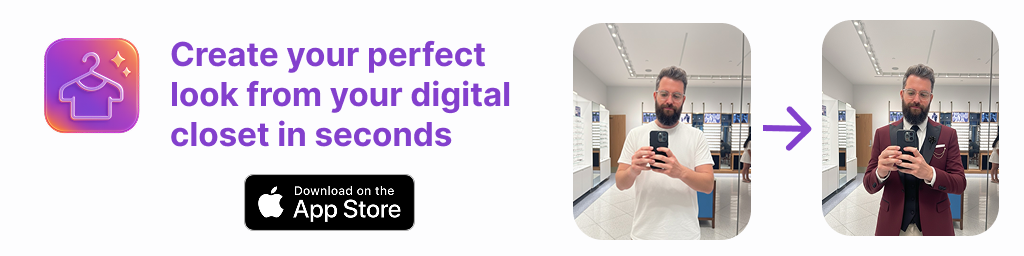
- AI try-on and styling: Use computer vision to test combinations and preview how pieces may look together on a body or a mannequin.
You can mix these workflows depending on your goals. Many users start with a mood board, evolve it into a capsule plan, then break that plan into weekly outfit collages. The best apps keep all three connected so you can move fluidly from inspiration to decision.
Key features to look for in a fashion collage app i
- Background removal: Clean cutouts make collages feel editorial. Prefer one-tap background erasing or iOS native Long Press subject lift from Photos.
- Layer control and grids: Layers, alignment snapping, and smart grids keep layouts tidy and repeatable.
- Canvas presets: One-tap sizes for Instagram posts, Stories, Reels covers, Pinterest pins, and printable PDFs.
- Color tools: Eyedropper to sample fabric tones, palette swatches, and contrast guides for accessible text.
- Typography: Clear font pairing, letter spacing, and editable templates for titles, prices, or style notes.
- Asset library: Save your cutouts and brand elements so you do not rebuild from scratch every time.
- AI helpers: Smart tagging, similar-item suggestions, auto-grouping by color or occasion, and optional AI try-ons.
- Export and share: High-res PNG with transparent background, JPEG for lightweight sharing, and layered files for future edits.
A step-by-step iPhone workflow for pro-looking collages
- Define the purpose and canvas. Decide if this is a mood board, outfit planner, or lookbook page. Set a canvas: 1080 x 1350 px for feed posts, 1080 x 1920 for Stories, or 1240 x 1750 for Pinterest-friendly verticals.
- Collect sources fast. Save screenshots from retailers, photos of your own pieces, and runway references into a dedicated Photos album. Use Files for logos or brand elements.
- Create clean cutouts. In Photos, long-press the subject to lift it, then copy and paste into your collage app. Or use the app’s background remover for tricky edges like lace or hair.
- Build a layout grid. Start with a simple 2 to 4 column structure. Place hero pieces first, then fill gaps with supporting items or text callouts.
- Add hierarchy. Make focal items 10 to 20 percent larger. Use weight, scale, and proximity to guide the eye from hero to details.
- Use color deliberately. Sample one garment color for headlines, then choose a neutral background. Keep text colors high-contrast for readability.
- Annotate just enough. Add item names, prices, links as short labels. Avoid clogging the canvas; keep meticulous details in Notes or the item record.
- Export two versions. Save a high-res PNG for your archive and a compressed JPEG for sharing. Keep file names descriptive and consistent.
- Review on device. Check legibility on a small iPhone screen. If text is hard to read, bump size or contrast before posting.
Three practical collage types you can make today
1. Weekly outfit board
Goal: Pre-plan five to seven looks using a consistent base, like dark denim or black trousers, and rotate tops, layers, and shoes.
- Grid: 2 columns by 3 or 4 rows
- Notes: Weather icons, meeting days, gym days
- Benefit: Fewer morning decisions and fewer outfit regrets
2. Trend mood board
Goal: Explore a theme like quiet luxury, coastal cowgirl, or utility chic without buying anything yet.
- Grid: Freeform layout with larger image anchors
- Sources: Runway stills, street style, retailer shots, color swatches
- Benefit: Clarifies which pieces to thrift or invest in, and which to skip
3. Event packing board
Goal: Fit a long weekend into a carry-on with mix and match looks.
- Grid: Outfits on the left, packing list on the right
- Add-ons: Dress code notes, forecast, and shoe rotation
- Benefit: Prevents overpacking and last-minute stress
Comparison: app types and when to use them
| App type | Best for | Ease | Signature features |
|---|---|---|---|
| Template-based collage maker | Quick social posts with clean grids | Very easy | Layouts, fonts, stickers, quick exports |
| Layer-based design app | Pixel-perfect mood boards and lookbooks | Moderate | Layers, masks, blend modes, precise spacing |
| AI outfit and try-on app | Testing combinations before you wear or buy | Easy | AI try-on, similar-item suggestions, fit hints |
| Wardrobe catalog and planner | Organizing your closet with tags and data | Moderate | Item records, tags, stats, calendar-based outfits |
Many iPhone users blend these: cut out items in Photos, assemble in a layer-based tool, then test key looks in an AI outfit app before committing.
Pro tips for collages that look editorial
- Keep negative space. Crowded pages feel noisy; leave consistent margins.
- Align shadows. If you add drop shadows, keep angle and blur consistent so items look like they exist on the same surface.
- Limit fonts. One sans for labels and one serif for headlines is enough. Use small caps or letter spacing for polish.
- Use repeated motifs. Circles for color chips, thin lines for dividers, and recurring iconography signal brand consistency.
- Standardize file names. Example: ss24_capsule_look03_black_trouser.jpg and ss24_items_black_trouser.png.
- Create master templates. A single look page, a multi-look grid, and a packing plan reduce setup time by half.
- Document decisions. Add a tiny note: keep, tailor, sell, or wishlist. Collages are more useful when tied to actions.
iPhone specific tricks that save time
- Photos lift subject. In Photos, long press the garment to pop it from the background, then paste into your canvas. It is shockingly good on clean product photos.
- Drag and drop on iOS. Split View on iPad or Slide Over on larger iPhones lets you drag items between apps without saving duplicates.
- Files quick look. Store logos, brand color HEX notes, and textures in Files for easy reuse.
- Shortcuts automation. Create a share sheet shortcut that renames exports, compresses, and files them into your archive.
Shortcut steps
- Receive image from Share Sheet
- Ask for Look name
- Set file name to lookname_yyyymmdd.jpg
- Convert to JPEG at medium quality
- Save to iCloud Drive fashion_collages
- Copy link to clipboard
With that in place, every export flows into a consistent, searchable library.
Alt text, captions, and file naming for discoverability
If you share collages on social platforms or your site, a little SEO goes a long way. Include descriptive alt text that mentions the garment type and purpose, for example: neutral capsule wardrobe collage with camel coat, black trouser, white sneaker, and gold hoops. If your content aims to capture searches similar to fashion collage app i, you can echo that phrasing in a natural way within your page text or captions. Avoid keyword stuffing; aim for clarity first.
- Alt text: Identify key items, colors, and context, not just brand names.
- Caption: State the goal of the board, like weekday capsule or spring event looks.
- File names: Use lowercase, underscores or hyphens, and descriptive words.
- Hashtags: Pair broad tags like outfitideas with niche ones like capsulewardrobe or blacktrousers.
When to add AI try-on to your workflow
AI can help in two moments. First, when you are exploring how new purchases might fit into your existing wardrobe. Second, when you want to preview silhouette balance and color harmony on a body instead of flat lay cutouts. Use AI try-on to test risky combinations, confirm color clashes, and avoid redundant buys.
That said, keep expectations realistic. AI does not replace real fit. Treat it as a visual hypothesis generator. Look for apps that let you upload your actual pieces, respect fabric textures, and keep your data private. The best AI systems in a fashion collage app i workflow act as a supportive assistant, not a stylistic dictator.
Troubleshooting common collage problems
- Everything looks busy: Increase margins, remove 20 percent of items, and add a single headline to anchor the theme.
- Colors feel off: Sample from the garment itself or set the background to a neutral like warm gray to stabilize skin tones.
- Text is fuzzy on mobile: Bump font size by 2 to 4 points and tighten line spacing. Export at the platform’s recommended resolution.
- Cutouts look sloppy: Zoom to 300 percent and clean edges with a soft eraser. Prefer hard edges for denim and soft edges for knits.
FAQs
Is a fashion collage app the same as a mood board app?
They overlap. A mood board app is great for inspiration and themes. A fashion collage app i is tuned for garments, outfit structure, and sometimes AI try-on. Most creators use both functions in one tool.
What canvas size should I choose?
For Instagram feed, 1080 x 1350 vertical performs well. For Stories or Reels covers, 1080 x 1920. For Pinterest, taller verticals like 1240 x 1750 give you more room for annotated looks.
How do I remove backgrounds cleanly on iPhone?
Use the Photos long press subject feature on product images for quick, clean cutouts. For complex backgrounds, switch to an app with manual refine tools or a dedicated background remover and then import the PNG.
Do I need AI to make great collages?
No, but AI can accelerate decisions, especially for try-ons and similar-item suggestions. Start with manual collages and add AI where it reduces uncertainty.
One final note
If you want to move from inspiration to decisions on your iPhone, consider a tool that blends wardrobe cataloging, outfit planning, collage creation, and optional AI try-ons. For example, Outfit Maker lets you upload your clothes, build clean collages, plan looks for occasions, and experiment with realistic AI try-ons so you can decide what to wear faster.