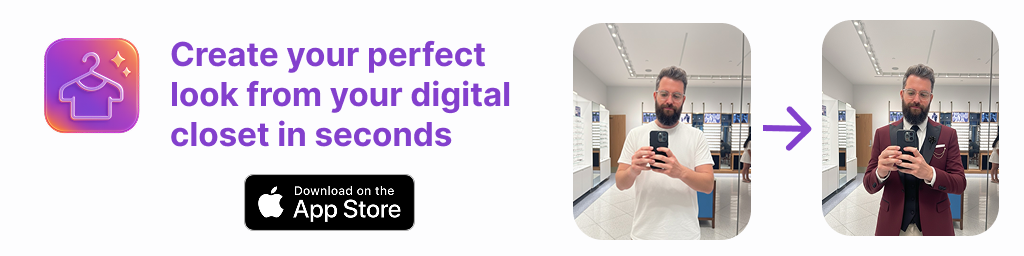
The right iPhone outfit app can turn a cluttered closet into a functioning system. Beyond saving a few minutes each morning, a well-designed app gives you a live inventory of your wardrobe, a visual record of what works, and realistic previews of new outfit ideas. This guide breaks down what to look for, how to set up a practical workflow, and the habits that make your digital wardrobe sustainable over time.
What an iPhone Outfit App Should Solve
Before comparing features, start with problems worth solving. Most people struggle with at least one of these:
- Decision fatigue: Too many options, not enough structure.
- Closet blindness: Forgetting what you own or how you styled it.
- Fit uncertainty: Wondering how a specific combo will look on you.
- Inconsistent routines: No repeatable process for planning outfits.
- Waste: Low cost-per-wear due to poor rotation or impulse buys.
An effective iphone outfit app should address these with smart cataloging, realistic previews, planning tools, and feedback loops that nudge better decisions over time.
Core Features to Look For
Use this checklist to evaluate any iPhone outfit app you are considering:
| Feature | Why It Matters | Questions to Ask |
|---|---|---|
| AI Try-On or Outfit Previews | Reduces guesswork by simulating how items look together. | Does it handle different poses, lighting, and body types? |
| Smart Catalog | Centralizes photos, tags, and item data for quick search. | Can you tag by color, fabric, season, and occasion? |
| Planner & Calendar | Turns ideas into a weekly schedule you will actually wear. | Does it support recurring events, reminders, and notes? |
| Weather & Location | Aligns outfit choices with real temperatures and conditions. | Are temperature ranges and precipitation factored into suggestions? |
| Style Analytics | Measures cost-per-wear and item utilization for smarter buys. | Can you see most worn items and neglected pieces quickly? |
| Sharing & Collaboration | Helps you get feedback and swap ideas with trusted friends. | Is sharing private by default? Can you control who sees what? |
| On-Device Privacy Options | Protects personal outfit photos and biometric likeness. | Is processing done on-device? How easy is it to delete data? |
| Batch Import & Cleanup | Speeds up initial setup so you can start planning sooner. | Does it auto-remove backgrounds and detect duplicates? |
Set Up Your Digital Wardrobe: A Practical Sequence
It is tempting to photograph everything in one go, but a staged workflow is faster and more accurate. Try this sequence in any iPhone outfit app:
- Define tags upfront: color, category, season, dress code, and temperature bands (e.g., 40–55°F, 55–70°F, 70°F+).
- Start with high-impact pieces: shoes, outerwear, denim, and your top five tops. These anchor most outfits.
- Photograph consistently: neutral background, indirect daylight, phone at chest height, item framed head-on.
- Remove backgrounds if offered: it improves mix-and-match visuals and layout.
- Add cost and purchase date: this powers cost-per-wear and aging alerts later.
- Create 10 seed outfits: focus on repeatable uniforms rather than one-off looks.
- Plan one week and wear it: log actual wears to train suggestions and refine tags.
Virtual Try-On: Tips for Realistic Results
AI previews succeed or fail on input quality. These tips improve realism:
- Use a stable pose: a relaxed natural stance, arms slightly away from the body.
- Even light, no harsh shadows: north-facing window light or soft lamps.
- Neutral clothing as a base: slim tee and fitted bottoms to avoid confusing outlines.
- Capture several angles: front, 45°, and side for outerwear and longer garments.
- Match scale: ensure shoes, bags, and accessories are photographed at consistent distances.
- Reality check: compare the preview to a mirror shot of similar items to calibrate expectations.
Remember that virtual try-on predicts composition and silhouette, not comfort. Use it to shortlist combinations, then test key outfits in real life for movement and fabric behavior.
Planning Workflows That Actually Stick
1. The 10-Minute Weekly Reset
Every Sunday, open your iphone outfit app and schedule five outfits. Start with your non-negotiables: work meetings, travel, workouts, or events with dress codes. Then fill remaining days with low-effort uniforms anchored by weather and your most-worn items. Add one experimental look to keep learning.
2. Capsule Formula for Any Season
Use a simple ratio to avoid overbuying and under-rotating:
- 3 tops + 2 bottoms + 1 layer + 1 shoe + 1 bag = 12 mixed outfits
- Add 1 accent (scarf, hat, bold jewelry) to refresh the formula
Store this as a reusable checklist in your app and tag items by capsule so you can swap pieces in and out while preserving balance.
3. Event-Backed Planning
For special occasions, create a micro-workflow: inspiration mood board, three try-on previews, one contingency outfit for weather shifts, and a packing list if traveling. Attach venue, timeline, and any dress code notes to the outfit entry for future reference.
Make Data Work for Your Style
Analytics turn your style habits into insight. At minimum, track wears per item and cost-per-wear. You can also estimate outfit utilization and identify gaps in your wardrobe.
Benchmarks: A strong rotation drives core items below a cost-per-wear of 2 dollars within a season; accent pieces may land around 5–10 dollars per wear, depending on occasion frequency.
Quick Cost-Per-Wear Calculator
// Simple cost-per-wear helper
function costPerWear(price, wears) {
  return price / Math.max(1, wears);
}

// Example: $120 sneakers worn 24 times
console.log(costPerWear(120, 24)); // 5
To go deeper, tag outfits and look for patterns: which colors or silhouettes show up in your most-worn looks? Which items rarely get scheduled? Use that feedback to alter future purchases and tailor your capsules.
Organizing Tags for Speed
Great tags equal fast decisions. Consider these categories:
- Category: top, bottom, dress, outerwear, shoe, bag.
- Fit: slim, straight, relaxed, oversized.
- Color & contrast: base (black, navy, tan), mid, accent.
- Season & temp bands: winter, transitional, summer; 40–55, 55–70, 70+.
- Occasion: office, casual, formal, travel, date, workout.
- Care & fabric: machine-wash, dry clean, wool, linen, denim, performance.
Once established, these tags enable lightning-fast filters and smarter app suggestions.
Privacy, Ethics, and On-Device Safeguards
Outfit photos and body renders are sensitive. Treat privacy as a first-class feature when selecting an iPhone outfit app.
- On-device processing: Prefer apps that perform try-ons and tagging locally or provide a clear on/off switch for cloud processing.
- Explicit consent: Look for transparent notices around AI training and opt-out options.
- Deletion controls: Ensure you can permanently remove photos, models, and account data from settings without emailing support.
- Private sharing by default: Links should be unlisted or access-controlled, not public feeds by default.
Read the privacy policy and check whether your content is used to train models; if so, make sure opt-out is available and honored.
Accessibility and Inclusivity
A wardrobe tool is only useful if everyone can use it comfortably. Favor apps that:
- Support a wide range of body types, genders, and adaptive clothing.
- Offer adjustable skin tones and lighting options for realistic previews.
- Provide VoiceOver labels, high-contrast UI, and clear tap targets.
- Include color-blind-friendly palettes and text alternatives for color tags.
Inclusivity is not just ethical; it also yields better, more accurate results.
Common Mistakes to Avoid
- Photographing everything at once: You will burn out. Start with high-impact pieces.
- Saving only perfect looks: Log average outfits to reveal your real uniform.
- Ignoring weather: Plan to actual temperature and precipitation, not wishful thinking.
- Skipping wear logs: Without data, the app cannot surface true favorites or poor performers.
- Over-tagging: Too many tags slow you down. Use a small, consistent set.
Evaluation Checklist: Pick the Right App in 15 Minutes
- Install 2–3 candidates mentioned in trusted roundups or app store categories.
- Import 12 items: 5 tops, 3 bottoms, 2 shoes, 1 layer, 1 bag.
- Create 6 outfits and schedule 3 days.
- Run a quick AI try-on with one complex outfit (layer + accessory) to test realism.
- Check privacy settings, data export options, and account deletion flow.
- Time the weekly planning flow; aim for under 10 minutes.
- Choose the app that makes you faster and more accurate, not just more impressed by effects.
FAQ: iPhone Outfit Apps
Do I need AI try-on, or are flat lays enough?
Flat lays are great for brainstorming, but AI try-on shortens the jump from idea to reality. If you often misjudge proportions or drape, prioritize apps with high-quality try-on.
How many photos do I need to start?
A dozen is enough to prove whether the workflow fits you. Expand weekly with 5–10 new items and you will build a near-complete closet in a month.
What if my style changes often?
Use temporary tags like experiment, trend, or rental. Schedule a monthly audit to archive pieces you are not wearing and to rebalance your capsules.
Can I plan for travel?
Yes. Create a trip tag, set weather ranges for your destination, build 3 base outfits, then add two accents to remix. Export the packing list from your planned outfits.
Bringing It All Together
A solid iphone outfit app gives you clarity: what you own, how it works together, and which looks deserve repeat wear. Start small with a few high-impact items, tag consistently, plan weekly, and log what you actually wear. Within a month, your data will reveal a personal uniform, highlight gaps worth filling, and reduce those last-minute wardrobe panics.
If you are exploring options on iOS, you can test an app like Outfit Maker to get realistic try-ons, a smart catalog, and planning tools without overhauling your entire routine on day one.